Teacher guide
Eduters bundles work well as a whole-class warm-up, a practice activity, or a quick check at the end of a topic. This guide covers how to use them in the classroom and for home learning.
What's available today: learners each use their own Eduters sign-in, and each learner sees their own results. Class lists and a teacher dashboard are not part of Eduters yet, so the steps below use sharing links and learners' own results screens.
1. Run a bundle with the whole class
Free bundles play without anyone signing in, so they are the quickest way to start on a shared screen.
- Open the Eduters portal on the classroom display.
- Choose a bundle under 🆓 Free Bundles and press ▶ Play.
- Read the Start Now card aloud: number of questions, minutes and mode. Then press Start Now 🚀.
- For each question, let the class discuss or vote, then select the answer.
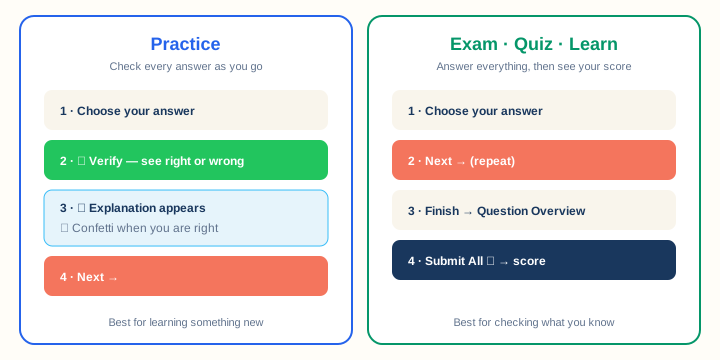
A Practice bundle works best for class discussion. After choosing an answer, press ✓ Verify to reveal whether it is right and show the 💡 Explanation. Use the explanation to discuss the thinking behind the answer. Then press Next →.
Results from a shared-screen run are not saved, which keeps the class activity free of pressure.
2. Share a bundle with your learners
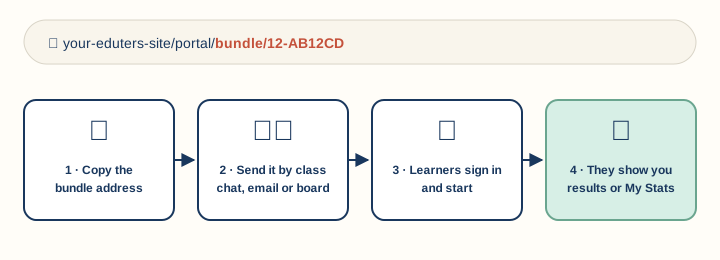
Each bundle has its own page address. Send it to learners and they go straight to that bundle.
- Open the bundle page in the portal.
- Copy the address from your browser's address bar. It ends in
/portal/bundle/followed by the bundle key. - Send it by your usual class channel: learning platform, email, or written on the board.
- Learners open the link, press Sign In and continue with Google, then press the bundle's start button.
Learners who are signed in and Submit their session keep their result in 📊 Stats → Recent Sessions.
3. Choose the right mode for the job
The mode is set by the bundle's author and shown on the Start Now card.
| Mode | Learner experience | Good for |
|---|---|---|
| Practice | Check each answer with ✓ Verify, then read an explanation. | Teaching new material, homework, catch-up. |
| Exam | Answer everything, review in the Question Overview, then Submit All. | End-of-topic checks, revision tests. |
| Quiz / Learn | Same flow as Exam: the score appears after submitting. | Low-stakes quizzes. |
If a bundle shows a clock, it is timed. Learners can still flag (🚩) or skip questions and come back to them from the overview before submitting.
4. Seeing how learners did
Class accounts
If you want to see every learner's results yourself, apply for teacher access: sign in with Google, open 👤 Profile and press Apply as a parent or teacher, then choose Teacher or tutor. Once an administrator approves you, 👨👩👧 Students appears in the menu.
- Press + New student for a learner without an email. They sign in with the username and password you choose, using I have a student username on the sign-in page.
- For learners who already sign in with Google, press Class code and give them the code. They enter it on My Parents & Teachers and you approve them. Or press Invite and enter their email. Each learner uses one student slot; the Parents & Teachers page shows your slots and lets you add more.
- Open a student and use Assign a bundle to set work: a start date, due date, number of attempts, an earlier bundle to finish first, and a note. Work appears on the learner's 🗓️ Plan page in the order it needs doing. You see results only for the bundles you set, so a maths teacher and a music tutor can each follow their own work with the same learner.
- After a learner submits, press View report for the full performance report, or Share report to create a link you can send to a parent. Create progress link shares everything the student has submitted. Links can expire and can be revoked at any time.
Learners with their own accounts
After submitting, each learner sees a results screen with their score and Correct, Wrong and Skipped counts. Review Answers lets them go back through each question.
Ask learners to:
- show you their results screen at the end of a class activity, or
- open 📊 Stats to show Recent Sessions, Avg Score and Day Streak for home learning.
5. Question types and what they test
| Question type | What the learner does | Useful for |
|---|---|---|
| Choose one | Taps a single answer | Recall, true/false, missing words |
| Choose several | Selects every correct answer | Classification, "which of these…" |
| Picture choice | Taps one of four pictures | Vocabulary, early readers |
| Number pad | Enters a number | Arithmetic, counting |
| Put in order | Drags words or items into order | Sentence building, sequencing |
| Listening | Plays an audio clip, then answers | Languages, phonics, comprehension |
| Drawing board | Draws freely or traces a guide | Handwriting, shapes, showing working |
| Visual helpers | Abacus, analog clock, shapes, calendar, counting boxes, puzzles | Place value, time, geometry, dates |
Drawing answers are not marked automatically. The drawing is kept with the learner's saved or submitted session and does not count towards the score. If you need to review learners' drawings, contact support@eduter.com.
6. Make the experience fit your learners
Learners can choose their own look in 👤 Profile → Preferences:
- Experience: Tiny Tots, Kids, Middle School, High School, University, Professional, School Exams (a polished, professional look for exam preparation) or Exam Mode (a plain, distraction-free look for selective or formal exam preparation).
- Appearance: Light mode or Dark mode.
Picture-choice answers can also be selected with the keyboard. Audio only plays when the learner presses play, and it can be paused and replayed.
7. Create your own bundles
Want bundles that match your scheme of work? Teachers can become Eduters publishers and write their own questions, with pictures, audio, maths notation and explanations. See the Publisher guide.
Need help?
Email support@eduter.com. For a problem with a question, include the bundle name and question number.