Parent guide
Eduters gives your child short, focused bundles of questions, with pictures, sound and instant feedback. This guide helps you set things up, choose the right bundles, and keep an eye on progress.
1. Try it together first
You don't need an account to see what Eduters is like.
- Open the Eduters portal.
- Under 🆓 Free Bundles, press ▶ Play on a bundle that suits your child.
- Press Start Now 🚀 and try a few questions together.
Scores from these tries are not saved. When your child is ready to keep their progress, set up an account (step 2).
The Student guide explains every screen in child-friendly steps. It's worth reading together the first time.
2. Set up your child's account
Your child does not need an email address. You create a student account for them from your own account:
- Press Sign In in the top-right corner and choose Continue with Google to sign in as yourself.
- Open 👤 Profile and press Apply as a parent or teacher. Choose Parent or carer, fill in the short form and send it. We review applications and let you know on the same page when you are approved.
- Once approved, open 👨👩👧 Students and press + Add student. Enter your child's name, keep or change the suggested username, choose a password they can remember, and press Create student.
- Your child signs in from the sign-in page with I have a student username, typing the username and password. Their username ends in
@eduters.com; they type only the part before it.
Give each child their own student account so their results stay separate. Every result belongs to the account that played the session. If you sit with a young child using your own account, their results are recorded under your account.
From the student's page under Students you can reset their password, put the account on hold, or delete it.
3. Choose the right experience
Eduters changes its look and feel to suit different ages.
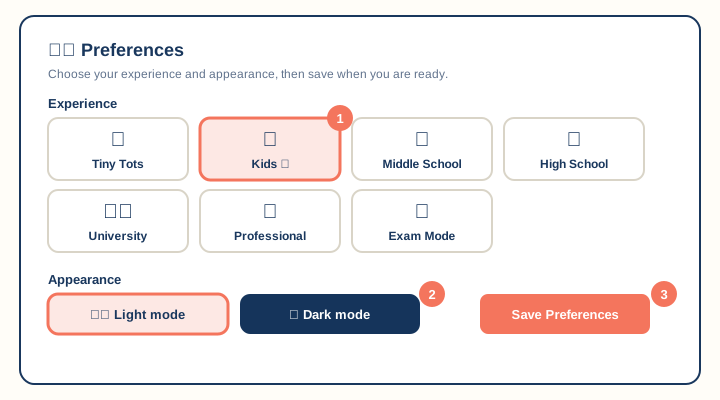
- In My Profile → Preferences → Experience, choose the one that fits your child:
- Tiny Tots for babies and toddlers, or Kids for ages 6–10.
- Middle School for ages 11–14, or High School for ages 15 and up.
- School Exams for a polished, professional look while preparing for school exams.
- Exam Mode for children preparing for selective or formal exams.
- Under Appearance, choose Light mode or Dark mode ("easy on the eyes" for evening practice).
- Press Save Preferences. The choice follows your child to any device they sign in on.
4. Choose bundles well
Every bundle card shows the subject, the level, and roughly how long it takes (⏱️). Open the bundle page to see a description, its rating, and how many learners have played it.
- Free: anyone can play.
- Sign In (Popular Bundles): needs an account.
- 👑 Premium: part of a paid plan. See the plans on the portal's About page.
Practice or exam?
The mode is shown on the Start Now card before a session begins.
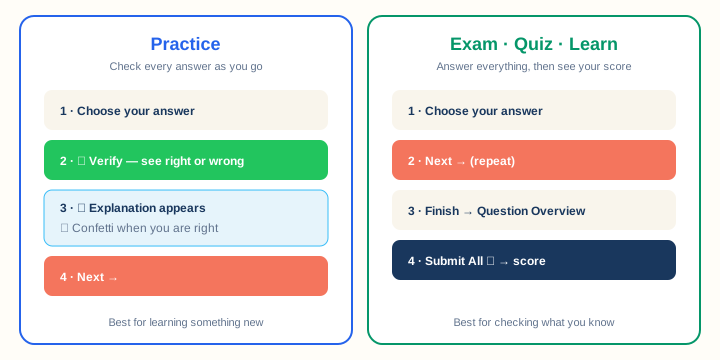
- Practice is best for learning something new. Your child checks each answer with ✓ Verify and reads a short explanation.
- Exam, Quiz and Learn are best for checking what your child already knows. They answer everything, then see a score.
Some bundles are timed. If a clock appears, remind your child they can still skip a hard question and come back to it.
5. Helping young learners
- Listening questions: audio only plays when your child presses play, so nothing starts unexpectedly. Check the volume first. You can replay a clip as many times as needed.
- Drawing questions: your child draws with a finger or stylus and can press Clear to start again. Drawings are kept with the session for a teacher to look at; they are not marked automatically.
- Reading support: it's fine to read questions aloud. The goal is understanding, not speed.
- During a session, the menus are hidden so your child can concentrate. The ✕ button in the top corner leaves the session.
6. Follow your child's progress
Your child sees everything you set on their 🗓️ Plan page, in the order it needs doing, with due dates and how many tries they have left.
From your own account, open 👨👩👧 Students and choose your child. Their page lists every bundle you assigned with its state, the due date and the score once it is submitted. Press View report to see the full performance report: time on each question, answers that were changed, confidence, the strongest and weakest topics, and tips on what to practise next.
To assign a bundle, choose it under Assign a bundle, set a start date, due date, number of attempts or an earlier bundle to finish first if you like, and press Assign. It appears in your child's plan straight away.
If your child already has their own Eduters sign-in, you do not need to create a new account: press Invite on Students and enter their email. They accept from My Parents & Teachers in their portal. Each student uses one student slot; the Parents & Teachers page shows how many you have.
To let a teacher or tutor follow along, press Create progress link under Share progress and send them the copied link. They can open the reports without an account, and you can revoke the link at any time.
Your child can also see their own progress: open 📊 Stats while signed in to their account.
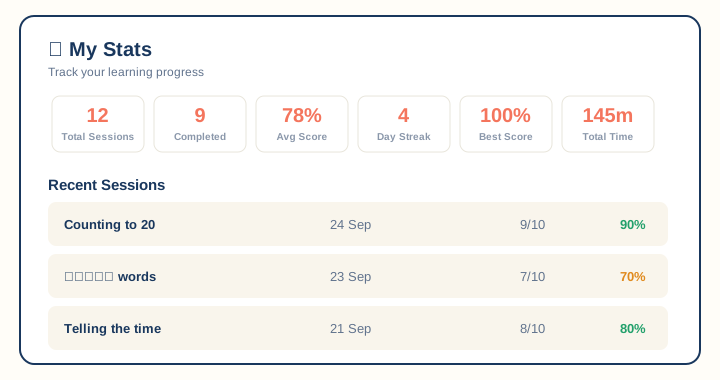
- Avg Score and Best Score show how well they are doing.
- Day Streak shows how many days in a row they have learned. Short, regular sessions build a streak.
- Total Time shows minutes spent learning.
- Recent Sessions lists each bundle with its date and score.
On the home page, ⏳ Continue Learning shows bundles your child started but hasn't finished.
7. A simple routine that works
- Keep sessions short: one bundle of 10–15 minutes is plenty for young children.
- Start with a Practice bundle, then try the same topic in an Exam bundle a few days later.
- Look at Review Answers together after a session and talk about the ones that were wrong.
- Celebrate the streak, not only the score.
Questions parents ask
Is my child's progress saved? Yes, when they are signed in and either Submit or Save their session. Free bundles played without signing in are not saved.
Can I see my child's results from my own account? Yes, for student accounts you created: open 👨👩👧 Students, choose your child and press View report on any submitted bundle. Results of a child who signs in with their own Google account are only visible from that account.
My child can't open a bundle. A 🔑 Sign In button means the bundle needs an account. A 👑 Upgrade button means it is part of a paid plan.
Something looks wrong in a question. Email support@eduter.com with the bundle name and the question number. We pass it to the bundle's author.